REPORTING
AI Context Export
Create a focused, portable snapshot of selected metrics for AI analysis.
Select the nutrients, biometrics, and date range that matter to your question. Fuel Lens creates a downloadable context file containing the selected data and relevant summaries.
What is exported?
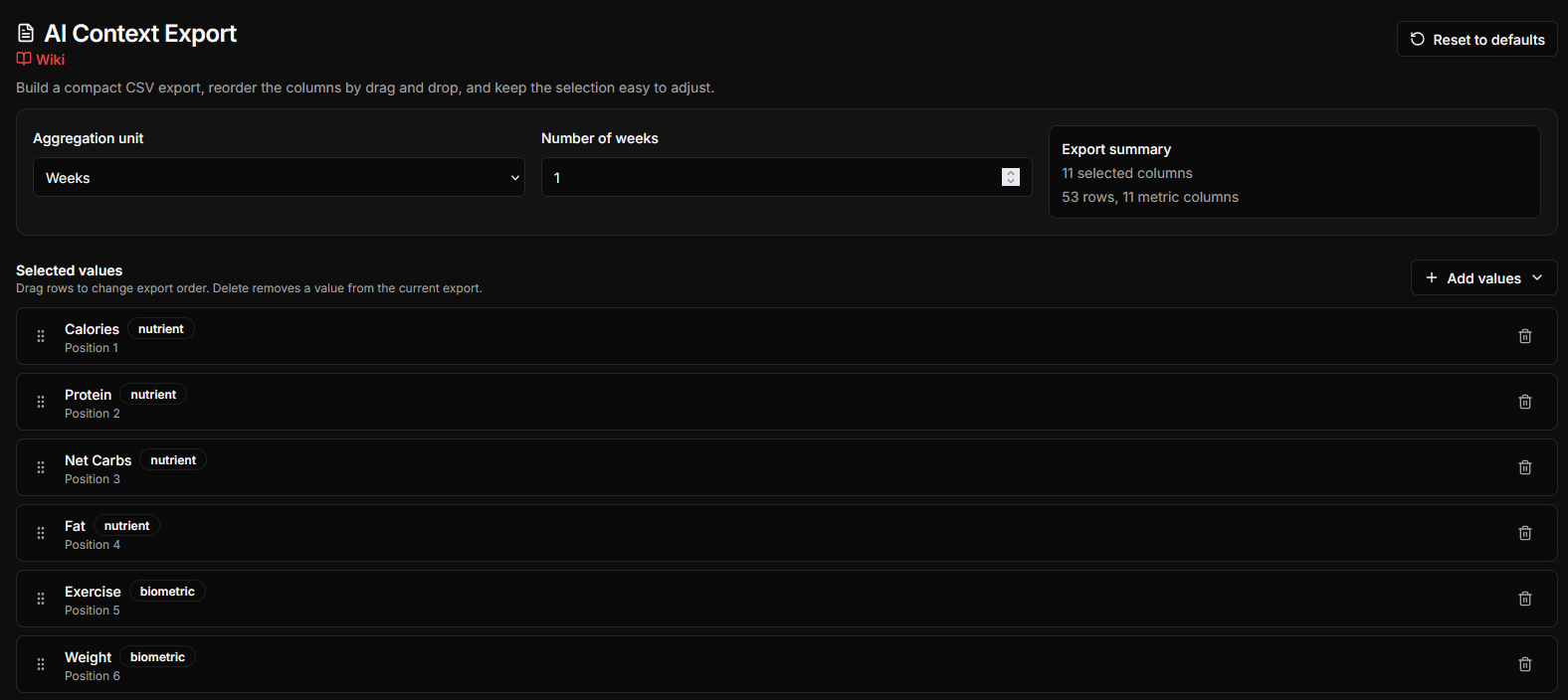
The export is a compact CSV table. The first column contains either individual dates or the start and end date of each aggregation window. The remaining columns contain the selected metrics. The default selection includes:
- Calories, Protein, Net Carbs, and Fat
- Exercise calories, Weight, Body Fat, Sleep Score, Sleep Duration, RHR, and HRV
Additional nutrients and biometric series found in the imported data can be added from the metric picker. Units are included in the column headers where available, for example Calories (kcal).
The metric picker also includes Foods. Add it to export one column with the foods consumed in each aggregation window, grouped by meal. Each meal entry includes summed calories, protein, carbohydrates, and fat, followed by the foods and their total logged amounts. Foods without a numeric gram amount use the imported portion text when available.
Create an export
- Open AI Context Export from the sidebar or use Open in Fuel Lens ↗.
- Set the analysis range in the main app. The export follows the currently selected dates; if no dates are selected, it uses the available data range.
- Choose Days or Weeks, then enter the number of days or weeks per row.
- Choose a preset: All, Body composition, Macros, Sleep and recovery, or Testosterone. The last preset includes calories, fat, fat percentage, weight, body fat, and available nutrients commonly relevant to testosterone nutrition, such as zinc, magnesium, vitamin D, selenium, omega-3, vitamin B6, cholesterol, and saturated fat.
- Add or remove metrics with the picker and drag the remaining rows into the order you want the AI to see. Enter a name and select Save preset to store your current selection in this browser. Saved presets can be applied or deleted later.
- Check the CSV preview and select Download CSV.
Use Reset to defaults to restore the standard metric selection. The selected metrics, aggregation settings, and custom presets are saved locally in this browser, so they are available the next time you open the view.
How aggregation works
For an aggregation window, Fuel Lens averages the available daily values for each selected metric. Missing values are left blank and are not treated as zero. Nutrients come from daily diary totals; Exercise is represented as exercise calories, while biometrics use their recorded daily values. The optional Foods column lists foods across the whole window and sums their logged amounts and macro nutrients; these totals are not daily averages.
If the selected range contains no value for any selected metric, that row is omitted. This keeps the file compact, but it also means the number of exported rows can be smaller than the number of calendar days in the range.
Use it with an AI assistant
Upload the CSV only after reviewing it. Pair it with a focused question, for example:
Compare my average calorie intake, body-weight trend, and exercise across the exported weeks. Point out patterns, unusual weeks, and data gaps.
Other useful questions include:
- Which selected nutrients changed most between the first and last aggregation window?
- Are weight changes temporally associated with changes in average calorie intake?
- Which weeks have missing sleep or biometric data, and how could that affect the comparison?
Treat AI output as exploratory analysis. It can identify patterns in the table, but it cannot establish causation or replace medical advice.
Features
- Search and select metrics
- Choose standard metrics quickly
- Control the analysis date range
- Reorder columns for a clearer analysis prompt
- Preview the generated rows before downloading
- Download a compact CSV context
The export is created locally and only includes the metrics you choose. Fuel Lens does not need to upload the file to create it. Review the downloaded content before sharing it with an external AI service, especially when it contains dates, body measurements, sleep data, or other personal information.
Related guides
Continue with these connected Fuel Lens guides.